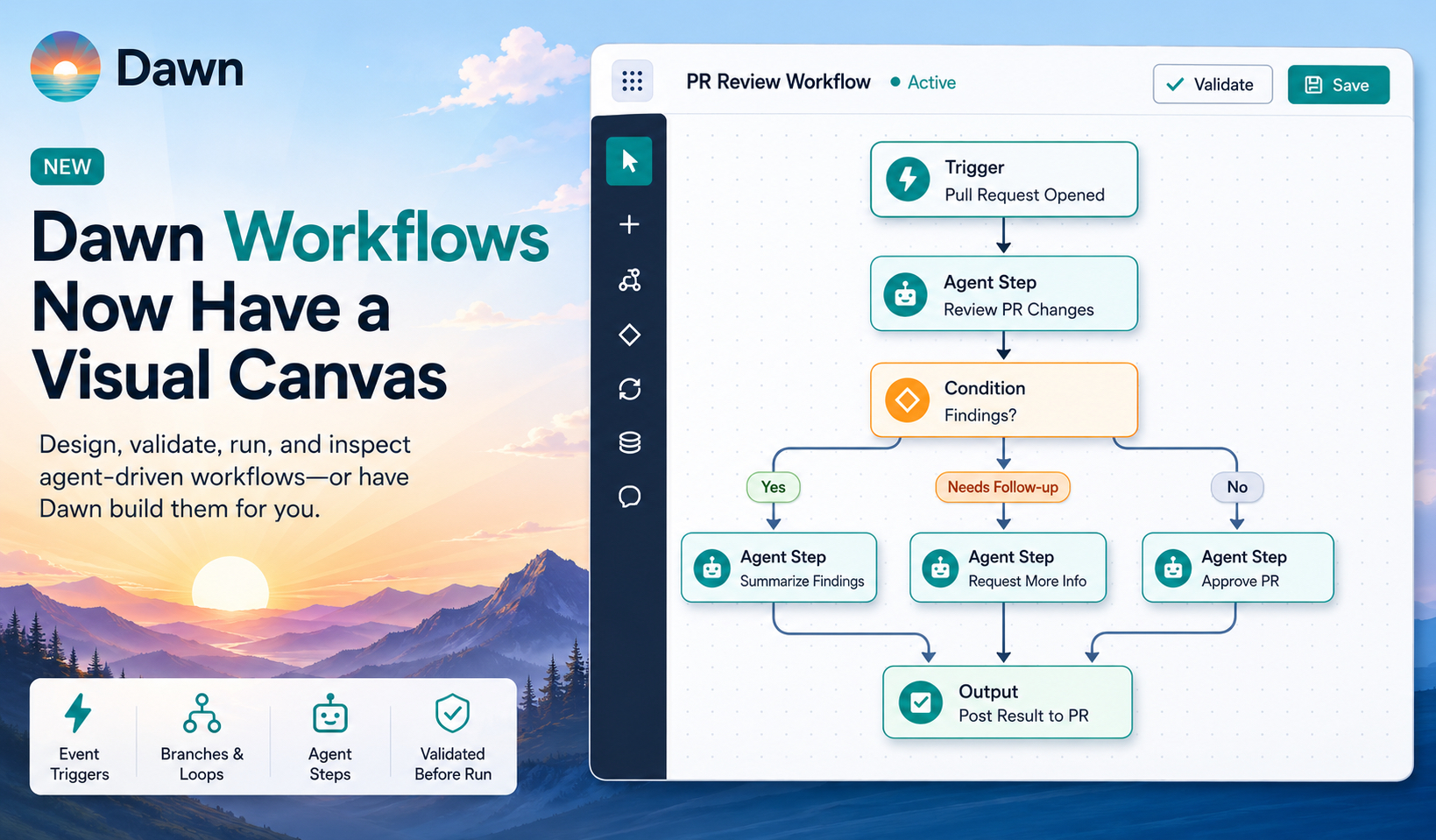
Dawn Workflows now have a visual canvas. Teams can lay out the trigger, agent steps, conditions, loops, and outputs of an event-driven workflow, or describe what they want and let Dawn draft the workflow for them on the canvas.
Workflows are what turn Dawn from a Q&A agent that waits for the next prompt into a proactive member of the team. They let Dawn work autonomously for longer stretches, make decisions according to your processes, and deliver real results without being asked each time. The canvas makes that automation visible and editable; the agent-driven design path makes it faster to build.
Workflows can still trigger from connected-source events (a pull request opening, a ticket updating, a build failing), but with branches, loops, and agent steps, they describe a real sequence of work, not just a single prompt.
Build the Flow You Mean
A workflow is no longer just a trigger plus a prompt. It can describe a sequence of work.
A pull request review workflow can start when a PR is created or updated, ask an agent to review the change, check whether there were findings, and decide what should happen next. A triage workflow can inspect a new ticket, classify it, and continue through different instructions depending on the result.
The canvas shows those steps as connected nodes. New workflows start from a blank canvas where the team adds the steps they need, or by asking Dawn to draft the flow and then refining it. Auto-arrange keeps larger workflows readable, especially after adding branches or moving steps around.
Ask Dawn to Build the Workflow
You can now describe what you want, “review every PR, flag changes to billing code, and notify me if a migration is touched”, and Dawn designs the workflow for you: the trigger, the agent steps, the branches and loops, and the output.
The agent can draft a multi-step flow in one pass, or refine an existing workflow when you tell it what to change. You stay in control of the canvas. Every step Dawn proposes is visible, editable, and validated before the workflow runs, so the agent-authored version is something the team can read, adjust, and trust.
That matters because workflows can get complex. A real triage flow has more than one branch. A real review flow handles success, failure, and “needs follow-up” differently. Designing those by hand is doable; asking Dawn to draft the first version is usually faster, and once the workflow is built, the same Dawn that designed it runs it.
Workflow drafting joins Skill and Prompt Command drafting, the same pattern of asking the agent to turn a conversation into reusable workspace content.
Branches, Loops, and Validation
We’ve added extra primitives to allow for more complex workflows than the sequential line of steps we had before.
Condition branches let a workflow continue differently when a step succeeds, fails, or produces a result that needs follow-up. Loops make repeatable work possible without copying the same instruction many times. Together they cover review, triage, and checklist-style processes where the next action depends on what the agent found.
Dawn validates the workflow before it runs. If a step is missing required information, a branch is not connected correctly, or a workflow cannot start as configured, Dawn highlights the issue in the editor. The goal is simple: catch obvious mistakes while someone is editing, not after an event has already fired.
Run History You Can Inspect
The Workflow Runs screen shows what ran, what triggered it, whether it completed, and what output was produced. Selecting a run opens the details so the team can inspect the workflow state and read the result.
If a PR review did not produce what someone expected, they can look at the run rather than guessing. If a workflow failed, the failure stays visible. If it completed, the output is available for follow-up.
Output That Can Become a Conversation
When Dawn finishes useful work, the result can be opened and continued from Dawn. The automated result stays connected to the workspace instead of turning into loose text that has to be copied around.
For a PR review, the team can inspect the automated output, ask the agent to clarify a finding, request a test plan, or turn the result into follow-up work. The workflow starts automatically; the team stays in control of what happens next.
Where This Fits
Workflows are a way to make Dawn work autonomously for longer periods of time, make decisions according to your processes and deliver real results without the need to be prompted. They are what turns Dawn from a simple Q&A agent into a proactive member of the team.
The visual canvas makes that capability easier to use and monitor. It gives teams a way to see the automation, refine it, and inspect the runs after it executes.
Getting Started
Open Dawn Web and go to Workflows. Create a blank workflow and add the steps yourself, or describe what you want and let Dawn draft the flow on the canvas. Choose the agent, connected source, events, and instructions, then validate the workflow before enabling it.
The existing guides are here:
Workflows are how Dawn moves from “ask when you remember” to “run when the work changes.” The canvas makes that automation visible, editable, and easier to operate as part of a real team workflow.