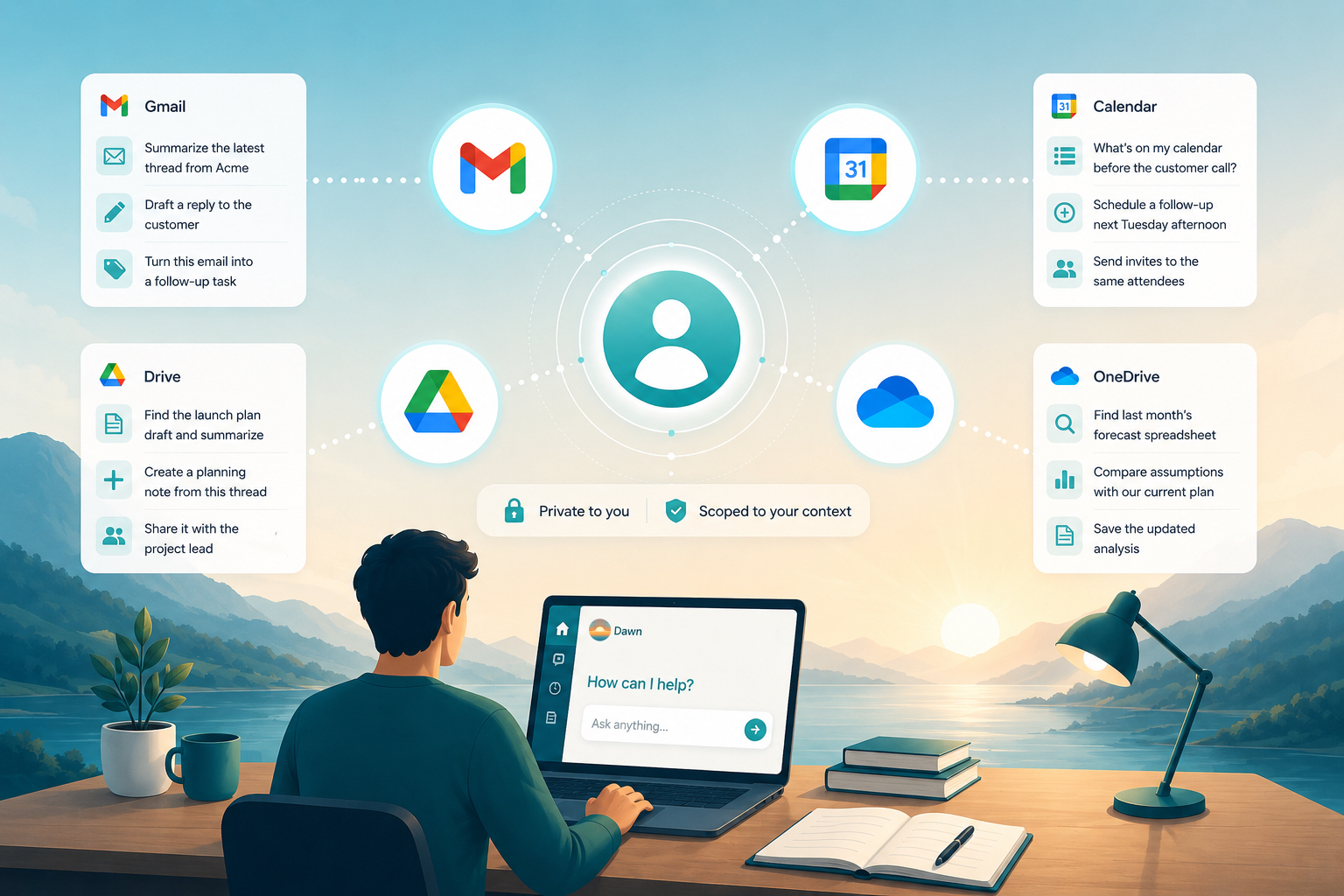
Dawn now supports personal integrations for Gmail, Google Calendar, Google Drive, and OneDrive. Users can connect their own inboxes, calendars, and drives, then ask Dawn to help with work that depends on private context without turning that private context into a workspace-wide source.
This matters because a lot of useful work sits between shared workspace knowledge and personal day-to-day systems. A repository might be shared while the meeting invite sits in your calendar. The customer plan lives in the workspace, but the latest follow-up is still in your inbox. And the project file might be in your personal drive because you drafted it before it became team material. Personal integrations let Dawn help in those moments while keeping the boundary clear.
Scoped to the Person Who Connects It
Workspace integrations are designed for shared sources: repositories, work item systems, docs spaces, marketing tools, and other places the team expects agents to read. Personal integrations are different. They are connected by an individual user and used as that user’s private context.
That means a teammate can ask Dawn to find an email they received, check their upcoming meetings, or read a document in their personal drive without exposing that whole mailbox or drive to everyone else in the workspace. The agent gets the context needed for the current run, scoped to the person who connected it.
It gives Dawn a way to help with the personal systems people already use every day, scoped to the person who connected them rather than shared across the workspace.
Mail Becomes Actionable
Gmail support lets Dawn help with inbox work from the same conversations where the rest of the task is happening.
Ask Dawn to find the customer email from last week, summarize the latest thread, draft a reply, or help turn an inbox item into follow-up work. If the action would change something, such as sending mail, replying, forwarding, archiving, or applying labels, Dawn treats that as a write action and uses the same confirmation-oriented behavior expected for user-owned systems.
A few examples:
Find the latest email from Acme about the renewal and summarize what they are asking for.
Draft a reply to this customer thread that confirms we will send the migration plan by Friday.
Find the onboarding emails from this week and turn the open asks into a short checklist.
Inbox context becomes part of the work Dawn is already doing: preparing a response, checking a plan, writing a follow-up, or connecting an email to the rest of the workspace context. Your mail client still handles everything else.
Calendar Context Without Manual Copying
Google Calendar support gives Dawn a practical way to reason about schedules when the user’s calendar is relevant.
Ask what is on your calendar before a customer call, get a quick preparation brief, create a follow-up event, update a meeting, cancel an event after explicit confirmation, or respond to an invitation. Calendar context is especially useful when it is combined with other Dawn context: files, memory pages, connected sources, and recent conversations.
For example, before a weekly project review you can ask:
Look at my next project review meeting and prepare a five-point agenda using the latest workspace context.
Or after a discussion:
Schedule a 30-minute follow-up with the same attendees for next Tuesday afternoon and include the action items we agreed.
Dawn can help keep the scheduling work close to the conversation, instead of forcing the user to switch tools, copy meeting details, and reconstruct the context manually.
Drive Files Join the Conversation
Google Drive and OneDrive already matter to a lot of teams because files rarely live in only one place. Personal integration support lets Dawn search, read, create, update, share, and manage files in the connected user’s drive when the user has granted the right permissions.
That makes common file work easier:
Find the product launch draft in my Drive and summarize the sections that still need decisions.
Create a short planning note in OneDrive from this thread and share it with the project lead.
Find the spreadsheet I used for last month's forecast and compare the assumptions with the plan we just discussed.
The important part is the boundary. A personal drive file can help a user complete a task without becoming a shared workspace source by default. If the file should become team knowledge, the user can make that decision deliberately.
Useful Across Channels
Personal integrations are most useful when they follow the user across Dawn surfaces. A teammate may start in Dawn Web, continue in a browser extension thread, ask from a direct channel, or delegate a longer run in the background. The connected personal account gives the agent the same user-owned context where it is allowed.
That makes personal integrations a better fit for everyday work than a one-off file upload. Dawn can help with recurring patterns: prepare for the next meeting, find the latest customer note, draft a follow-up, summarize a private file, or create the first version of a document from a conversation.
Individual users decide which personal accounts they connect and what permissions they grant.
What This Does Not Change
Personal integrations do not make private mail, calendar, or drive content visible to the whole workspace. They do not bypass provider permissions. They do not replace the native inbox, calendar, or drive applications. For complex account management, bulk mail operations, or day-to-day calendar administration, the native provider apps remain the right place.
This release is about letting Dawn use personal context when that context is needed to finish work. The user remains in control of the account connection, and write actions should stay explicit and confirmable.
Getting Started
Open Dawn Web, open your account settings, and go to My connections. That is where personal accounts are connected, separate from the workspace Integrations screen used for shared team sources. Connect the personal account you want Dawn to use. Each provider has a setup page:
Once connected, ask Dawn for something that depends on your own context: find a recent email, prepare for a meeting, or summarize a file in your drive. Personal integrations make Dawn more useful because they bring the private systems people already work in into the same conversation, without blurring the line between personal context and shared workspace sources.