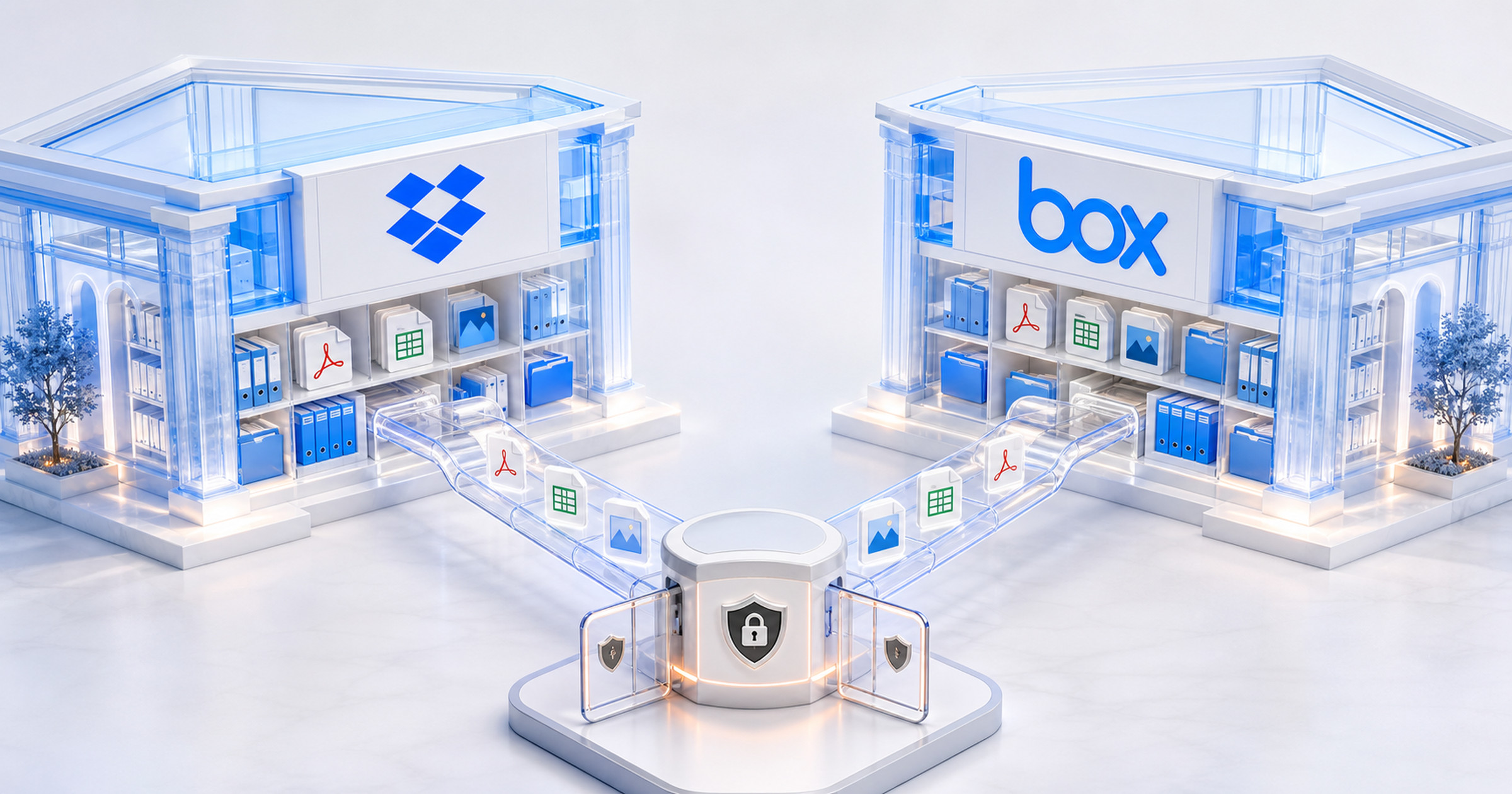
Dawn now supports Dropbox and Box as document integrations. Connect either provider with OAuth, link the folders you want agents to use, and assigned agents can browse, search, and read the files inside them. Both providers are also available as personal integrations, so individual users can let Dawn read their own files without making them visible to the whole workspace.
Until now, Dawn’s cloud drive coverage was Google Drive and OneDrive. That served Google and Microsoft tenants well and left everyone else uploading files by hand. Plenty of teams keep contracts, customer documents, research material, and operational files in Dropbox or Box instead. Those files can now be part of the context agents work from, the same way repositories, ticket systems, and wiki pages already are.
Link a Whole Account or Specific Root Folders
Connecting either provider follows the same workspace-owned model as Google Drive and OneDrive. A workspace owner opens Integrations, chooses Dropbox or Box, and signs in with OAuth. For team agents, connect a shared or service account rather than someone’s personal login, because the connection acts as the workspace’s view into that provider.
Once connected, Dawn discovers what the account can see and asks you to choose a boundary. You can link All files/folders, which covers everything visible to the connected account, or pick specific root folders for a narrower scope. The all-files option is deliberately explicit in the setup flow, because linking it means assigned agents can reach the entire visible account. Most teams will link a handful of root folders: the client documents folder, the contracts folder, the research archive.
Linked folders behave like any other Dawn connected source. They still have to be assigned to agents before anything can use them, so a support agent might see the operations folder while a planning agent sees only the product research folder. Every browse, read, and search stays inside the linked folder boundary. An agent cannot wander from a linked folder into the rest of the account.
What Agents Can Do With Linked Files
Agents with an assigned Dropbox or Box source can browse the folder tree, read text files directly, and open binary files through Dawn’s document tools. That last part matters more than it sounds: PDFs, Office documents, images, and archives in a linked folder go through the same document processing that Dawn uses for uploads and other connected sources, so an agent can summarise a contract PDF or pull figures from a spreadsheet without anyone downloading and re-uploading it.
In practice it looks like asking:
Find the latest statement of work in the Acme client folder and list the deliverables with their due dates.
Read the onboarding checklist in the operations folder and tell me which steps mention the staging environment.
Search uses each provider’s own search, scoped to the linked folder. Dropbox and Box index content on their side, which means results can lag for very recent files and coverage varies by file type. When a search comes back thin, browsing the folder directly is the reliable fallback.
Dawn reads these files at request time and does not sync, index, or copy their contents into its own storage. What Dawn keeps is connection metadata, encrypted tokens, and the folder identifiers needed to find things again. The files stay where they are.
Personal Files, Scoped to You
Dropbox and Box also join Dawn’s personal integrations, alongside Gmail, Google Calendar, Google Drive, and OneDrive. Connect your own account from My connections in your account settings, and Dawn can browse, search, and read your files in your conversations and in runs you explicitly delegate. Nothing about a personal connection is exposed to the rest of the workspace.
That covers the common case where a file is yours rather than the team’s: the draft you have not shared yet, the notes folder you keep for yourself, the client file that lives in your Dropbox because that is where the client sent it. Personal files go through the same document processing as workspace sources, so summarising a PDF from your own Box account works the same as summarising one from a linked team folder. If a personal file should become team knowledge, that stays your decision to make deliberately.
What This Release Does Not Include
This first release is read-focused. Agents cannot create, update, move, delete, or share Dropbox and Box files, and Dawn does not generate shared links on your behalf. Dropbox Paper and Box Notes are not editable through Dawn, and enterprise-wide admin discovery is out of scope: the connection sees what the connected account sees, nothing more. File changes in Dropbox or Box cannot trigger Dawn workflows yet either.
Those boundaries are intentional for a v1. Reading is where most of the value is, and it is the part that can ship without asking teams to grant write access to their file stores on day one.
Getting Started
For a workspace source, open Integrations, choose Dropbox or Box, connect with OAuth, pick your folder boundary, and assign the linked sources to the agents that should use them. If you have connected Google Drive or OneDrive before, the flow will feel familiar. For a personal connection, head to My connections in your account settings instead. Each provider has a setup page:
With Dropbox and Box in the catalog, Dawn now reads from the four cloud drives most teams actually use. Wherever your documents ended up, agents can work from the real files rather than whatever someone remembered to upload.