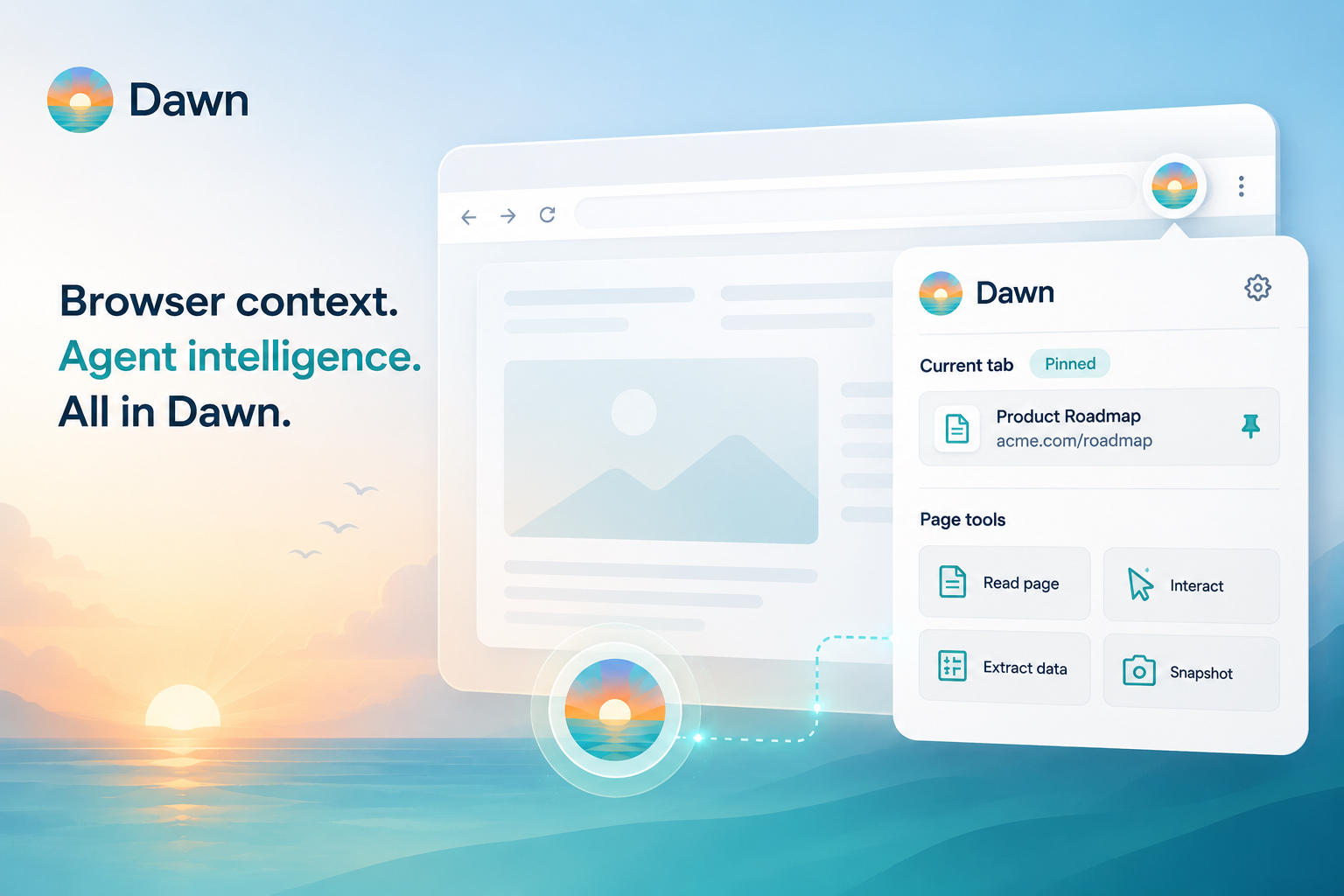
The Dawn browser extension is here. It is a full Dawn surface (the same agents, memory, skills, prompt commands, and connected sources you already use), with one capability the other surfaces cannot offer: working with the live page you are looking at, and with any tabs you pin to make available for ongoing work.
This is not a side-piece beside Dawn. It is Dawn, in the browser, with the live web added. The intelligence is the same; the reach is wider.
A lot of useful work starts in the browser. A user is looking at a customer portal, a dashboard, a public page, a form, or a broken UI state. The fastest way to explain the problem is often “look at this page” rather than copying every detail into chat. The extension makes that as direct as it sounds: open Dawn beside the page, point it at the tab, and continue from there with the same Dawn you already know.
Bring the Page Into the Conversation
Open the extension on the page you want help with. The current tab becomes context for the conversation: page title, URL, visible text, and any content you select. Ask the agent for what you need (a summary, a comparison, a bug report, a follow-up), and the response comes back with the page already in scope.
Page context is sent only when you use the extension. Each prompt carries the state of the tab at that turn, so the agent reasons about what is actually on screen, not what was there five minutes ago.
Pin Tabs to Make Them Available to Dawn
You pin tabs in the extension when you want Dawn to be able to work with them. Pinning is the consent step: it tells the extension you have approved this page, so an agent can read it, run the page tools you have enabled, and keep working with it as the conversation continues.
Long-running work in the browser does not always happen on a single page. You jump between a bug, a ticket, a doc, and a dashboard. A pinned tab stays attached to your Dawn work even as your attention moves elsewhere, so the agent can keep reasoning about the same page across several turns without you re-anchoring it every time.
Anything you have not pinned stays untouched. The extension does not extend access to other pages you happen to have open. The agent uses pinned pages alongside the rest of its working context: the selected workspace, the chosen agent, thread history, files, memory, skills, and connected sources.
Page Tools You Turn On
For deeper work, the extension can give the agent controlled access to page-interaction tools (reading state, working with the current page) that go beyond passive context.
These tools come from the live browser session, not from every Dawn conversation by default. They are available only when the extension is connected and you have enabled them.
Drive the Browser From Any Dawn Client
A pinned tab keeps working with Dawn even when the extension popup is closed. As long as the browser is open and the extension is signed in to the same workspace as you, an agent can read the page and run the page tools you have enabled, in the background, without you driving every click.
Commands can come from anywhere you use Dawn. A Dawn Web thread, a CLI session, the VS Code extension, or any other client signed into the same workspace can target the extension on your machine. You can be writing in Dawn Web, ask the agent to check the dashboard you have pinned in another tab, and the extension carries the work out without you switching windows.
That is what turns the extension into more than a sidebar. The browser becomes a place Dawn can reach into to act on the tabs you have pinned, from whichever client you happen to be working in. A workflow can drive a pinned tab too, when the work should run automatically rather than on demand.
Full Dawn, In Your Browser
The extension is not a stripped-down companion. It is the same Dawn, running in the browser. Every agent, memory page, skill, prompt command, and connected source you use elsewhere is available here. Threads sync. Workspace selection sticks. The agent you pick is the agent you would have picked anywhere else.
What changes is what the agent can reach. Each Dawn surface adds its own kind of local context: Dawn Web for workspace-level work, the CLI and VS Code extension for the code you are editing, and now the browser extension for the live page in front of you and the tabs you have pinned. The Dawn intelligence stays the same. The reach grows.
Where It Is Most Useful
Bug triage is the most obvious use case. A tester can open the page where something looks wrong, attach it to Dawn, and ask the agent to help describe the issue. A support teammate can use the page they are already viewing as context for a reply or escalation. A product manager can ask Dawn to compare what is on a page with a plan, a ticket, or a release note. Screenshots alone are not enough. A screenshot captures pixels, but the connected page gives the agent state about what is loaded and what is selected.
LinkedIn and other social work fit naturally with pinned tabs. Pin your LinkedIn feed and ask Dawn to scan it for posts worth replying to, connections worth making, or threads from people the team should know. The agent can draft a reply that sounds like you, build a shortlist of profiles to revisit, or summarise what the feed has surfaced today. The same pattern works for X, Reddit, Hacker News, or any other feed-style page the team wants to keep an eye on.
Pulling data out of pages is the other big use case. Any page that shows a table, a list, a job posting, a pricing grid, or a search result can become structured workspace data. Point the extension at it and ask Dawn for the rows you want, the fields you care about, and the output format. No custom scraper required. With pinned tabs, the same extraction can be re-run later from any Dawn client.
Research and comparison rounds it out. Read a competitor’s pricing or feature page alongside your own, compare a vendor’s documentation to what the team is already doing, or pull a customer’s public material into a thread before drafting a reply. The extension carries the live page; Dawn does the comparing.
Getting Started
Install the Dawn browser extension, sign in with your Dawn workspace, and open a Dawn conversation from the extension. Choose the page or tab you want Dawn to use as context, pin it if you want it to stay attached, then ask the agent for help with the task.
The setup guide is here:
The extension turns the browser into a full Dawn surface (the same agents, memory, and connected sources you already use), with the live page added. Sit in front of it, or drive a pinned tab from another Dawn client; either way the work happens with the Dawn you already know.